Product Slider
Magento 2 Extension — User Guide & Documentation
1 · Installation
Two ways to install — via Composer or by uploading the app folder. Both end with the same Magento CLI steps.
System requirements
- Magento 2.3.x / 2.4.x installed and working
- PHP, MySQL/MariaDB and web server meeting Magento 2 system requirements
- SSH access to run Magento CLI commands
Method 1 — Install via Composer (recommended)
- Open a terminal in your Magento 2 root directory and require the package:
composer require magepow/productslider - Run the Magento setup upgrade:
php bin/magento setup:upgrade - Deploy static content (production mode):
php bin/magento setup:static-content:deploy -f - Flush the cache:
php bin/magento cache:flush
Method 2 — Manual install (upload app folder)
- Download the extension package and unzip it. Upload the
appfolder to your Magento 2 root so it merges with the existingappdirectory. - Run the following commands from the Magento 2 root:
php bin/magento setup:upgrade php bin/magento setup:static-content:deploy -f php bin/magento cache:flush - Log out of the Admin panel and log back in to refresh access permissions, then clear the cache under
System > Cache Management.
2 · Configuration & Usage
All settings live in the Magento Admin panel. Screenshots below match the default Admin theme.
1 - How to make product collection
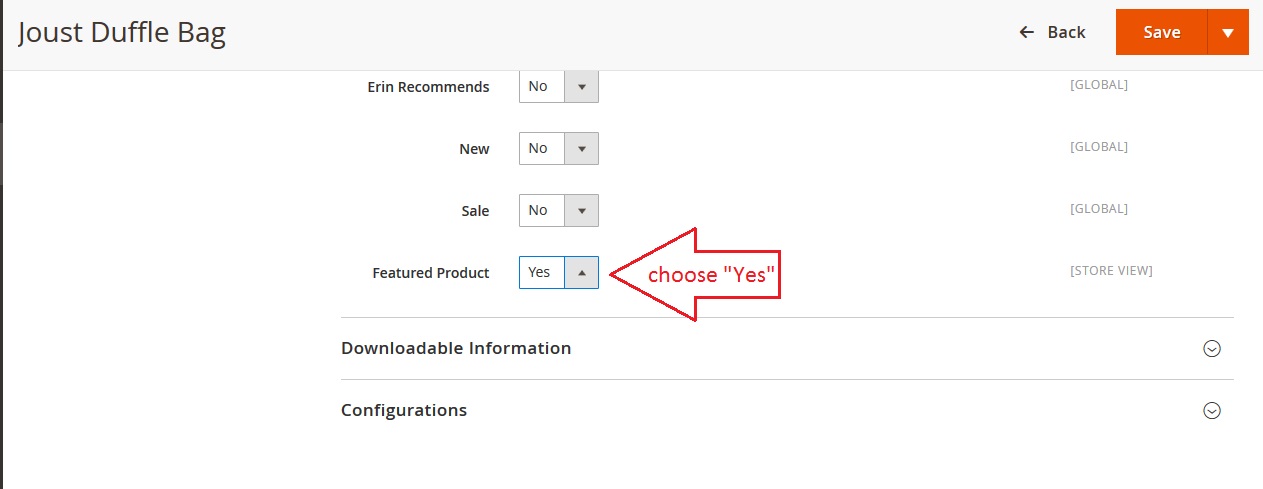
1.1 - How to make Featured Products
Catalog > Products > Edit > General > Featured Product > Yes > as Config as image below.
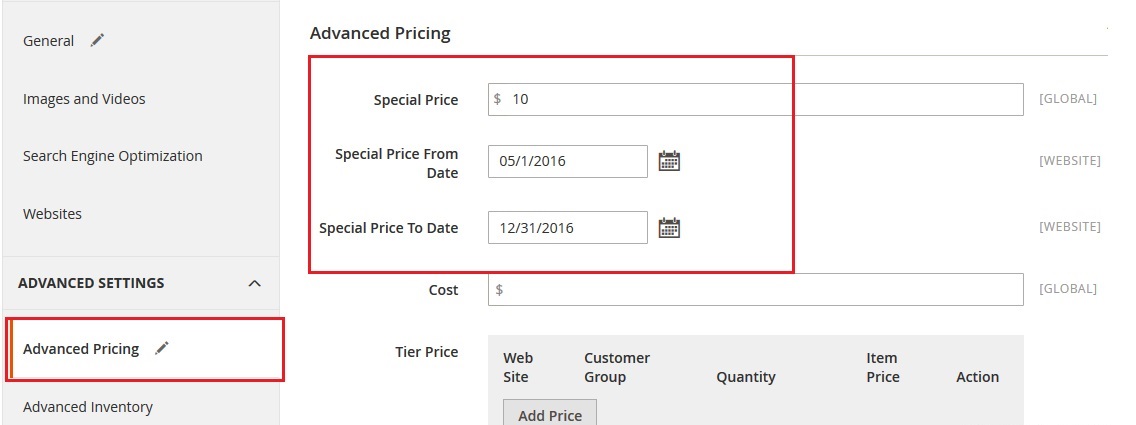
1.2 - How to make Sale Products
Catalog > Products > Edit > Advanced Settings >Advanced Pricing > set Config as image below.
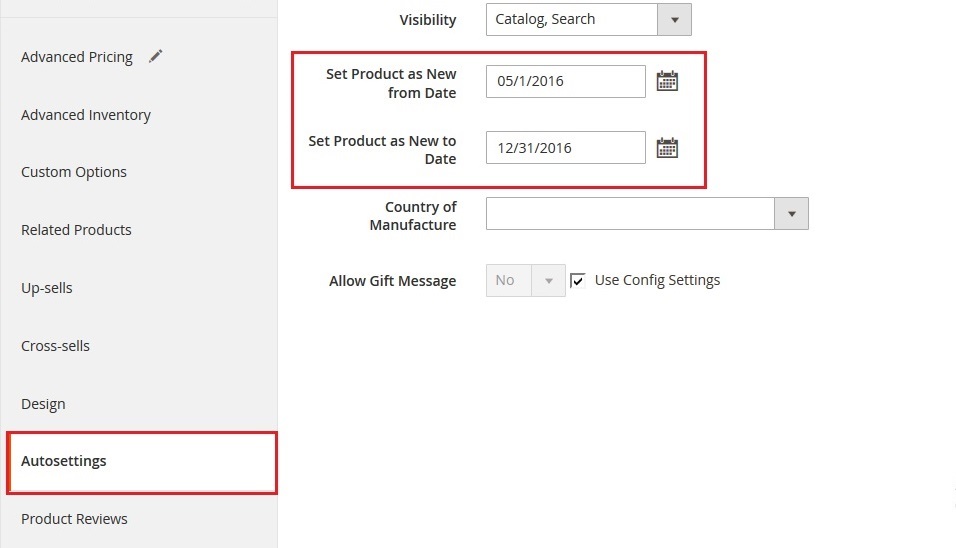
1.3 - How to make New Products
Catalog > Products > Edit > Advanced Settings > Autosettings > set Config as image below.
1.4 - How to make Best Seller Products
Products automatically updated display
1.5 - How to make Latest Products
Products automatically updated display
1.6 - How to make Random Products
Products automatically updated display
2 - How to use Widget Magicproduct
2.1 - How to use Widget Products
Please follow the steps below:
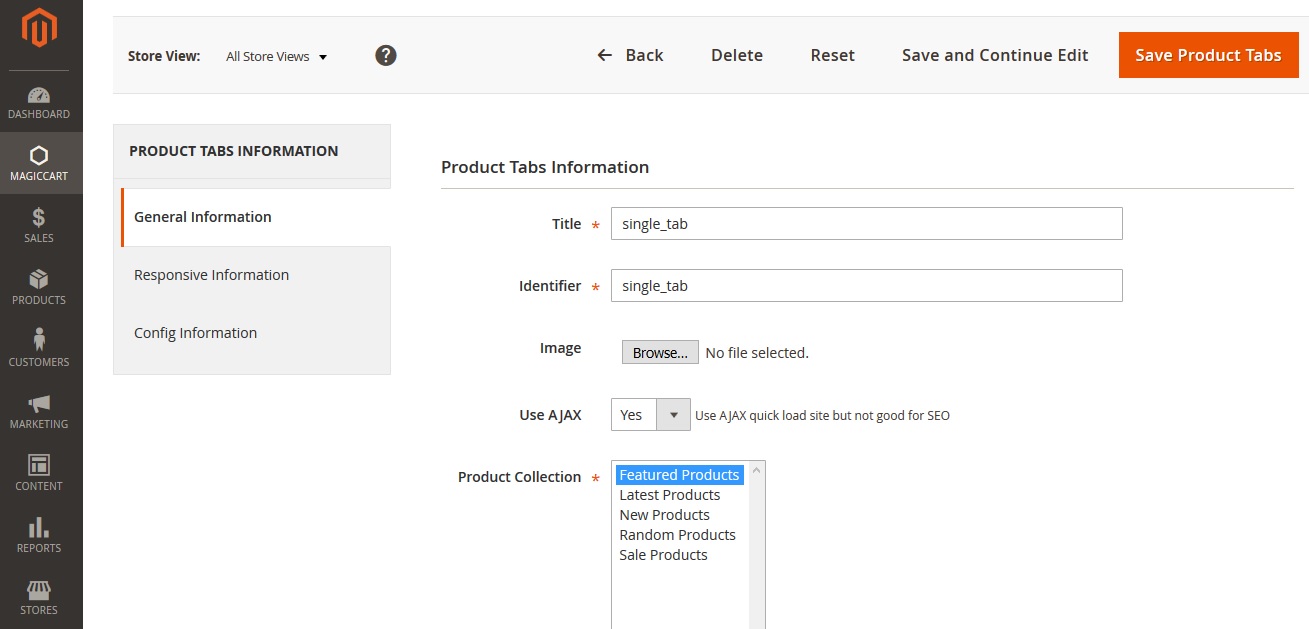
Step 1: Creat product tab config:
Magiccart > Magic Product > Product > Add New Product Tabs > set Config as image below.
	Note Step 1:
	Tab "General Information": Config General.
	Tab "Responsive Information": Config with template responsive.
	Tab "Config Information": Config Slide or Grid.
Step 2: Add Widget Product to CMS >Pages or CMS >Blocks
After the successful create Product Tabs in step 1 you can show it in pages or block
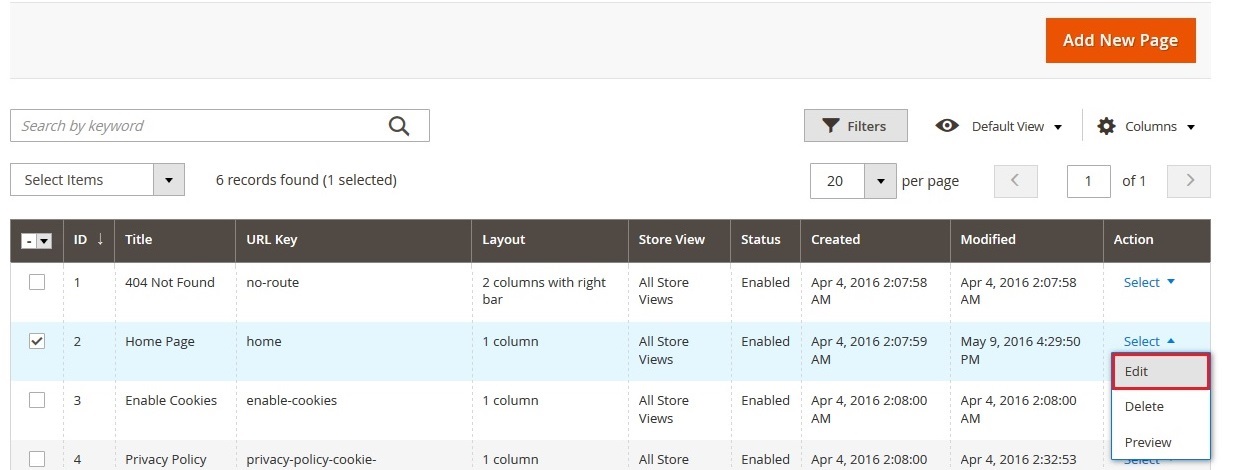
1. Now you go to CONTENT > Pages >home > Edit > as image below:
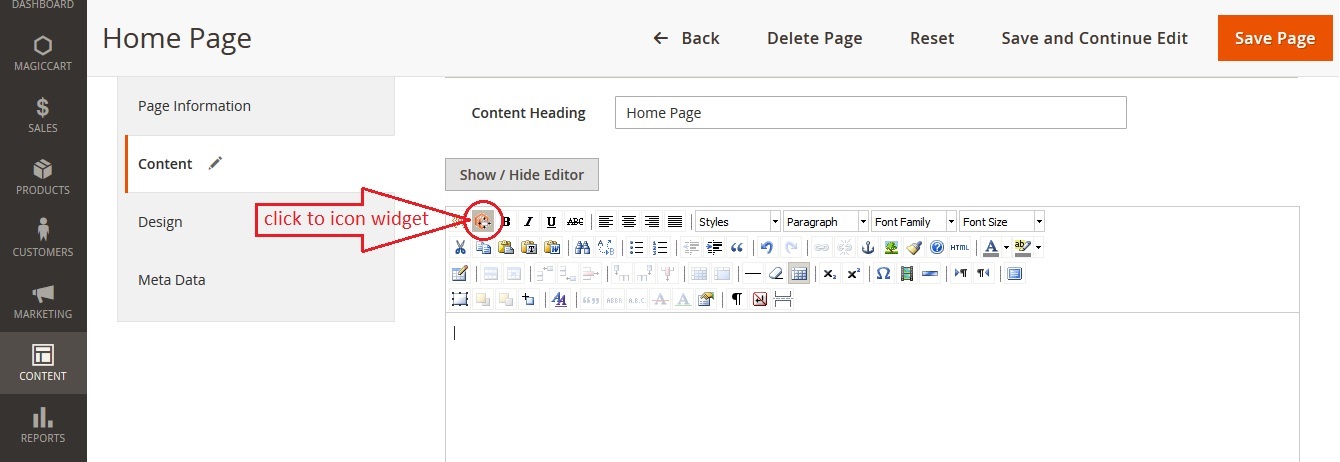
2. Click to icon widget:
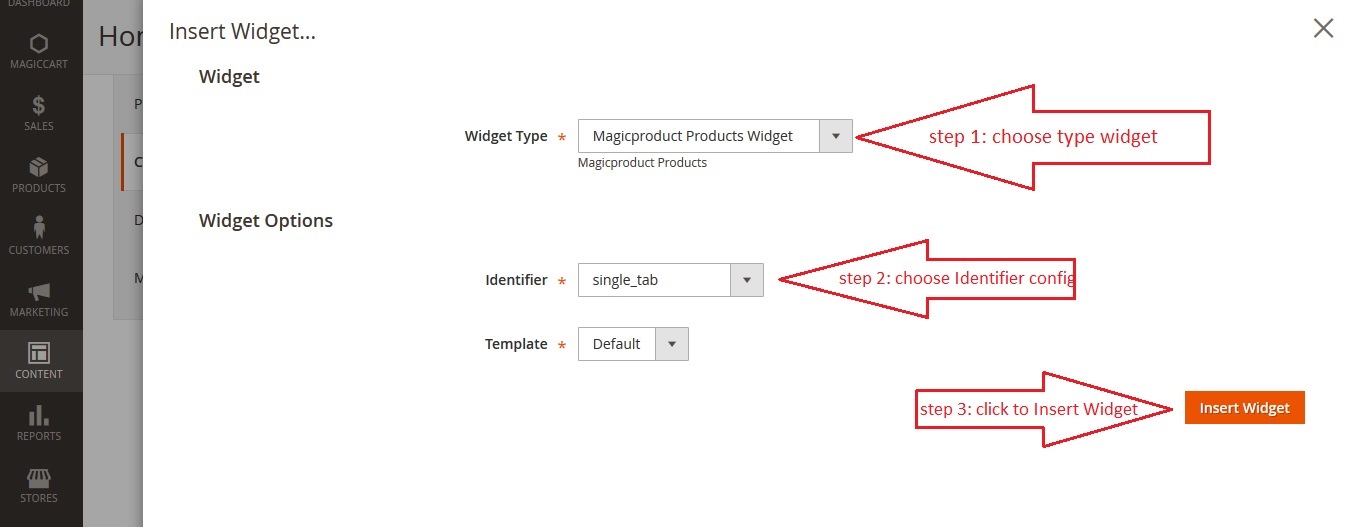
3. Insert Product widget:
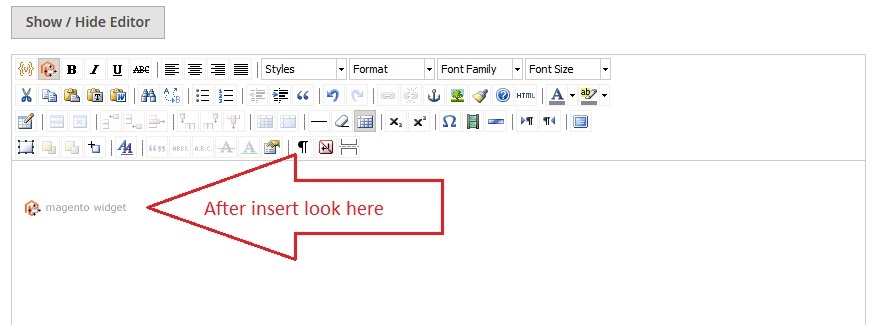
4. After insert Product widget:
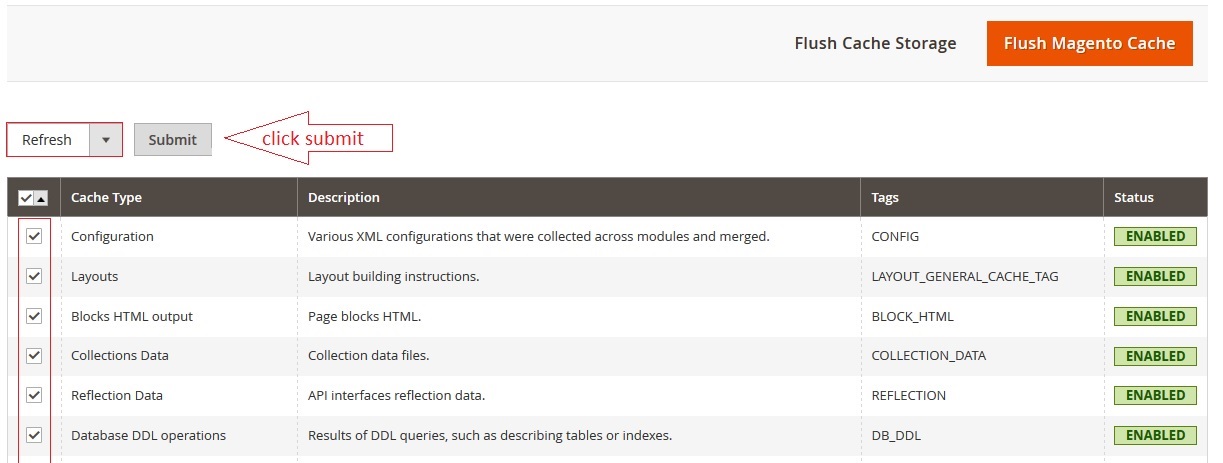
5. Continue go to SYSTEM > Cache Management > Refresh >Submit > as image below:
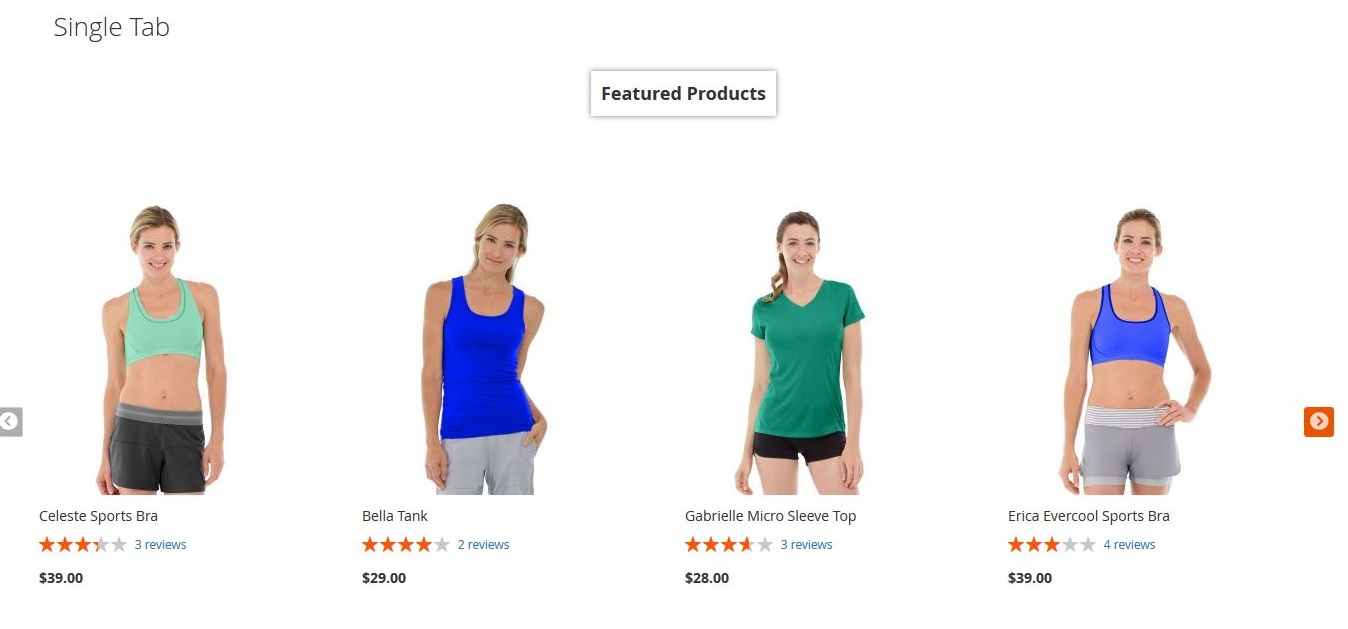
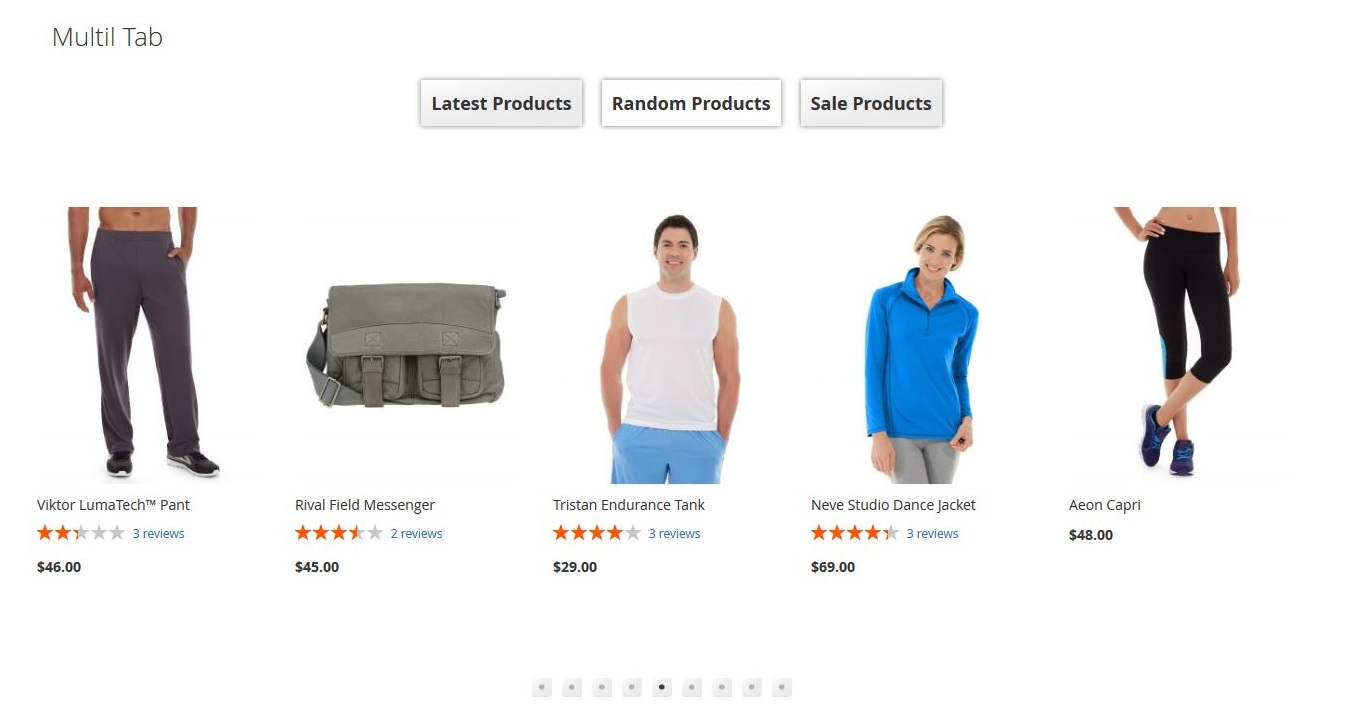
6. Now you go to frontend and refresh browser it will display as image below:
6.1 Single:
6.2 Multil Tab:
2.2 - How to use Widget Categories
Please follow the steps below:
Step 1: Creat Categories tab config:
Magiccart > Magic Product > Categories >Add New Category Tabs > set Config as image below.
	Note Step 1:
	Tab "General Information": Config General.
	Tab "Categories Information": Config Product Filter with Category.
	Tab "Responsive Information": Config with template responsive.
	Tab "Config Information": Config Slide or Grid.

Step 2: Add Widget Categories to CMS > Pages or CMS > Blocks
After the successful create Categories Tabs in step 1 you can show it in pages or block
Example show Widget Categories in home page:
1. Now you go to CONTENT > Pages > Home > Edit > as image below:
2. Click to icon widget:
3. Insert Categories widget:
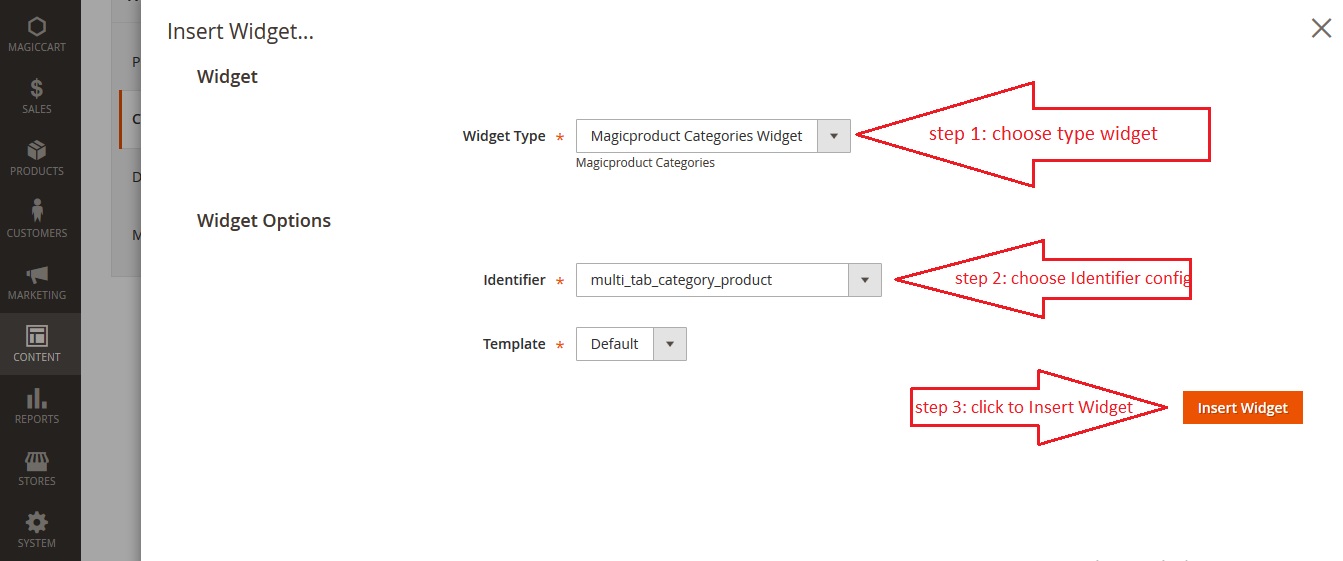
4. After insert Categories widget:
5. Continue go to SYSTEM > Cache Management > Refresh > Submit > as image below:
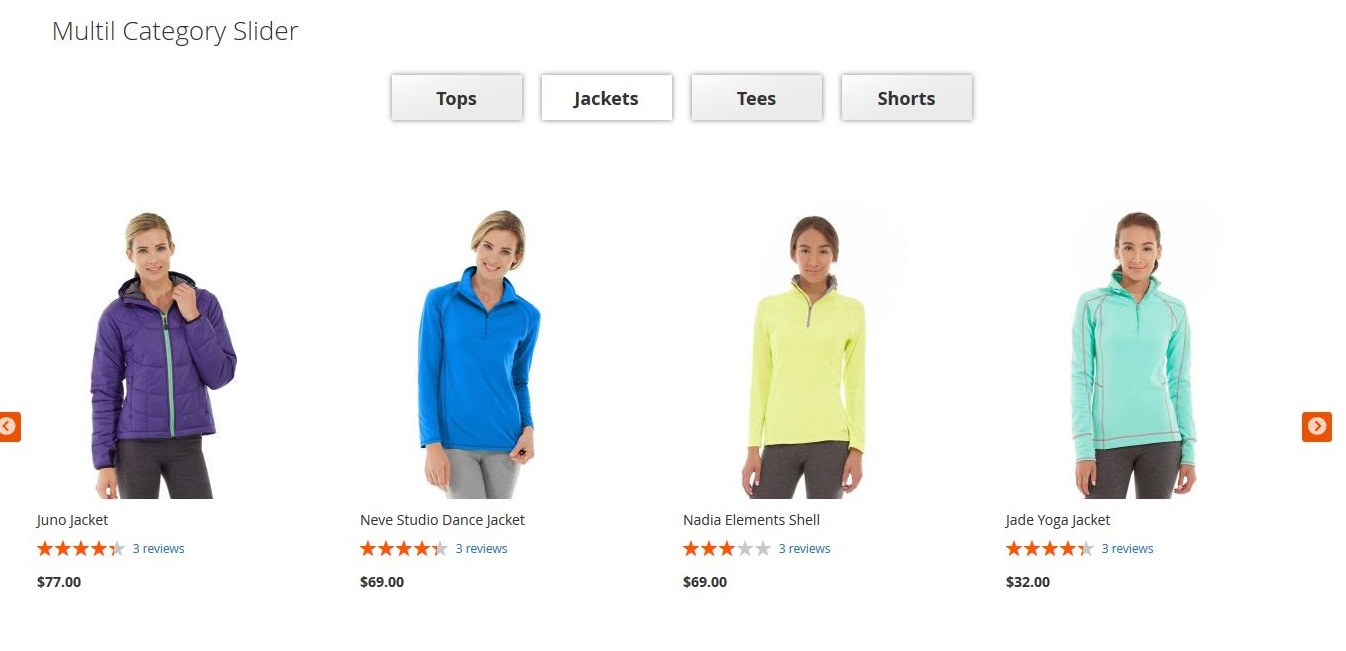
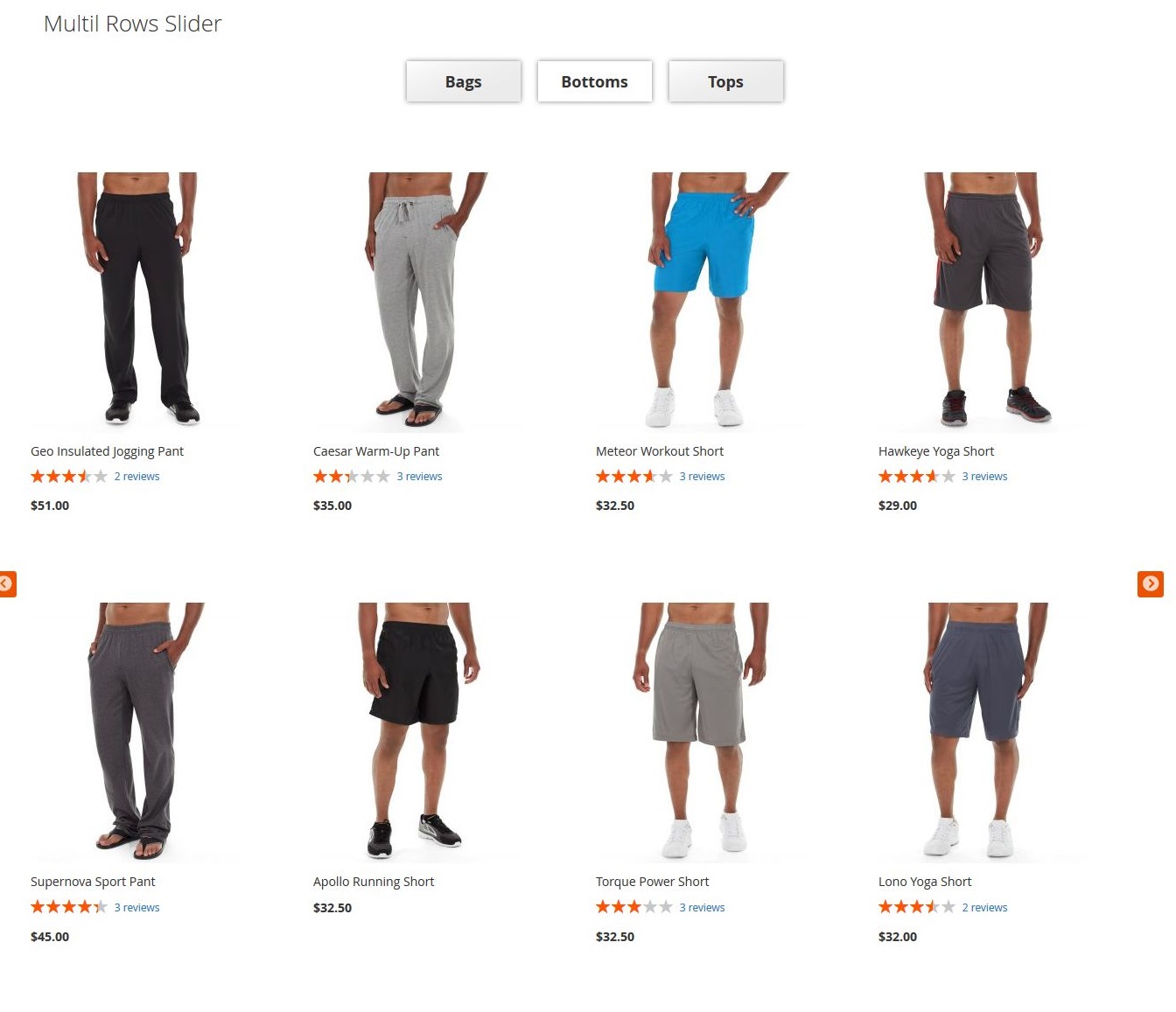
6. Now you go to frontend and refresh browser it will display as image below:
6.1 Multil Tab:
6.1 Multil Rows Slider:
2.3 - How to use Widget Catalog
Please follow the steps below:
Step 1: Creat Catalog Tabs config:
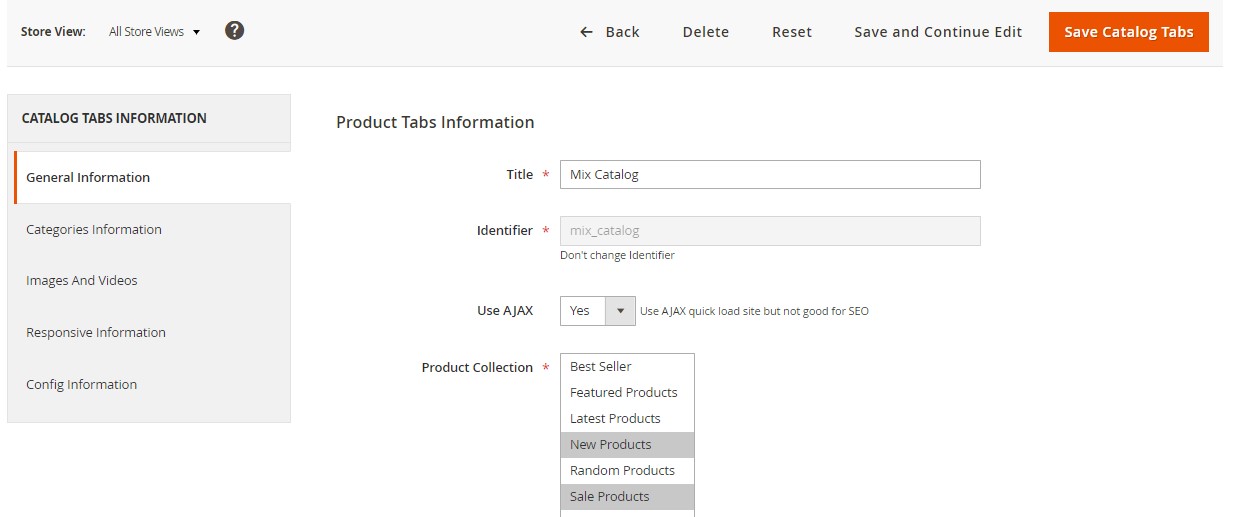
Magiccart > Magic Product > Catalog >Add New Catalog Tabs > set Config as image below.
	Note Step 1:
	Tab "General Information": Config General and Filter with Products.
	Tab "Categories Information": Config Product Filter with Category.
	Tab "Images And Videos": Add Images or Videos.
	Tab "Responsive Information": Config with template responsive.
	Tab "Config Information": Config Slide or Grid.
Step 2: Add Widget Catalog to CMS > Pages or CMS > Blocks
After the successful create Catalog Tabs in step 1 you can show it in pages or block
Example show Widget Catalog in home page:
1. Now you go to CONTENT > Pages > Home > Edit > as image below:
2. Click to icon widget:
3. Insert Catalog widget:
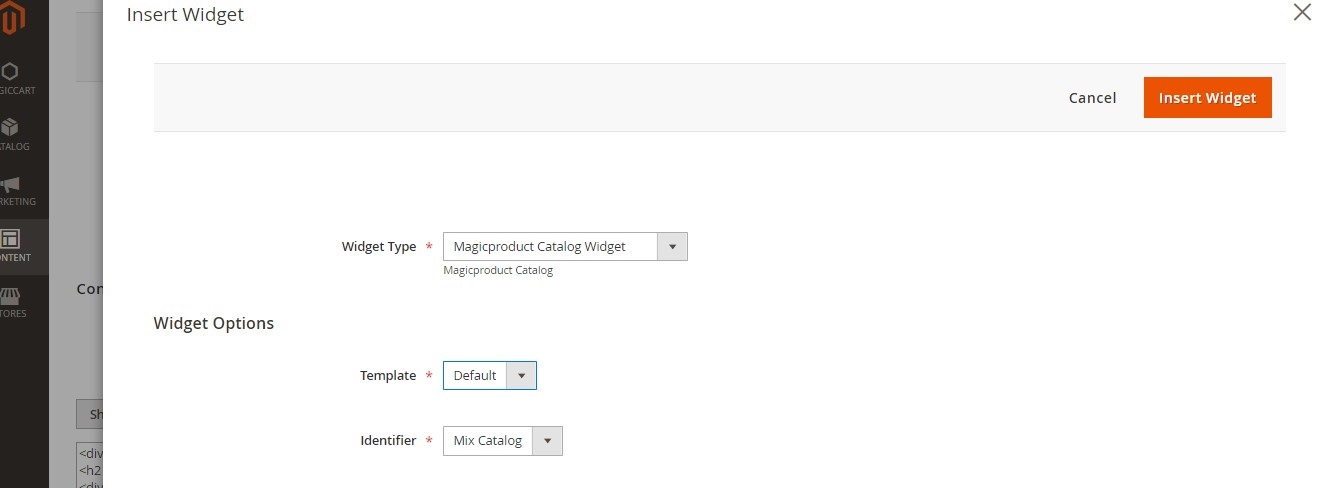
4. After insert Catalog widget:
5. Continue go to SYSTEM > Cache Management > Refresh > Submit > as image below:
6. Now you go to frontend and refresh browser it will display as image below:
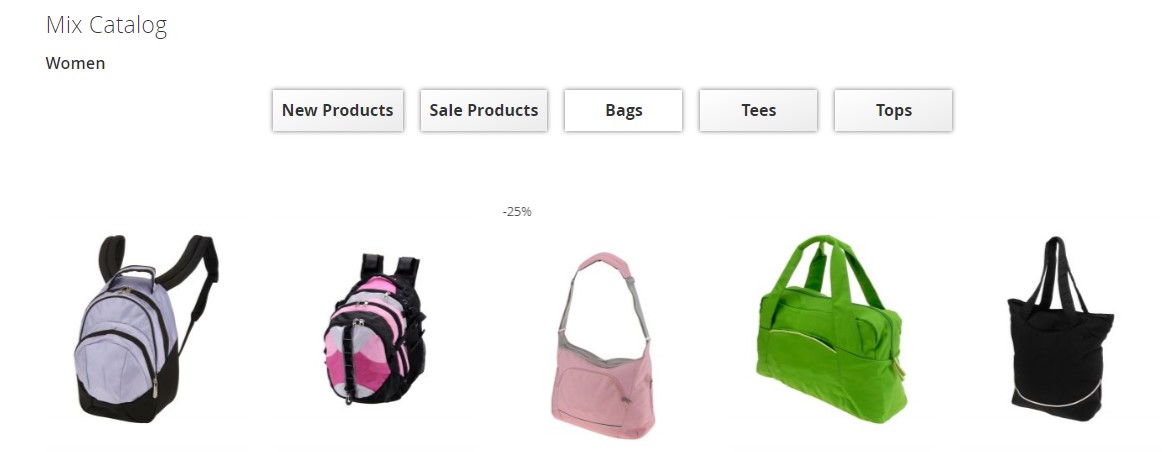
Mix slider
3 · Support
Found a bug or need customization? Contact us — we usually reply within 24–48 hours.
Need help?
- Ticket support: support.magepow.com — we reply within 24–48 hours (usually much faster). Please include your Magento version, extension version and screenshots/error messages.
- Documentation: docs.magepow.com
- Video tutorials: Magepow on YouTube
Bug reports
If you find a bug, please report it via the ticket system with steps to reproduce, expected vs. actual behavior, and any relevant logs (var/log/system.log, var/log/exception.log).